
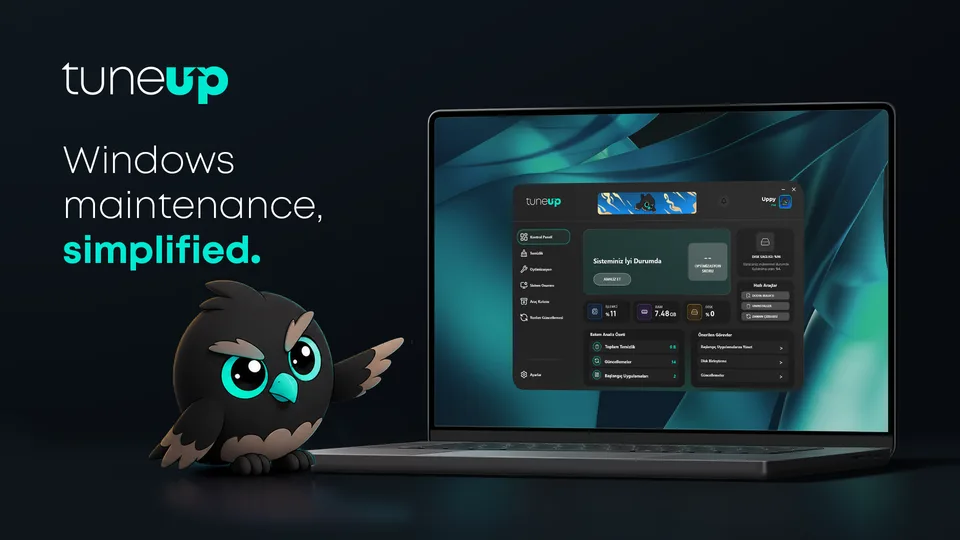
TuneUP logo
TuneUP Pro

Find duplicate files and free up space

The same photos, videos and installers pile up in different folders and can take gigabytes. The TuneUP Duplicate File Finder lists files with identical content so you can keep one and delete the rest.

  • Matches files by content, not by name
  • File Finder lists files above a size you choose
  • Unused Apps shows programs you haven't opened in a long time
TuneUP: Find duplicate files and free up space

How do you find duplicate files in Windows?

  1. Windows has no built-in tool for finding duplicate files.
  2. In File Explorer you can open each folder and sort by name or size.
  3. You then have to open and compare files that look alike, and copies with different names slip through.

Searching by hand can take hours across many folders and won't find copies saved under a different name.

Find duplicates with TuneUP

  1. Open Toolbox > Duplicate Finder in TuneUP.
  2. Start the scan; files with identical content are grouped.
  3. Keep one copy from each group and delete the rest.

Frequently asked questions

Which copy should I delete?

Usually the safest choice is to keep the copy in the folder you keep organized and delete copies in temporary places such as Downloads.

Can I delete large files in Windows or Program Files?

Large files you don't recognize there usually belong to apps. Remove the program with the Uninstaller instead of deleting them by hand.

Is the Duplicate Finder free?

The Duplicate Finder is part of TuneUP Pro. File Finder is unlimited on the Free plan.